
Cinematic text-to-video output
Veo 3.1 is well suited to prompt-led shots where camera direction, atmosphere, and subject movement need to feel more deliberate.
 AnimeGenerator
Use Veo 3.1 when you want polished cinematic motion, stronger scene readability, and a cleaner path from prompt to finished AI video.
Four stable Cloudflare examples arranged in a cleaner two-column layout so you can jump directly into cinematic Veo 3.1 workflows.
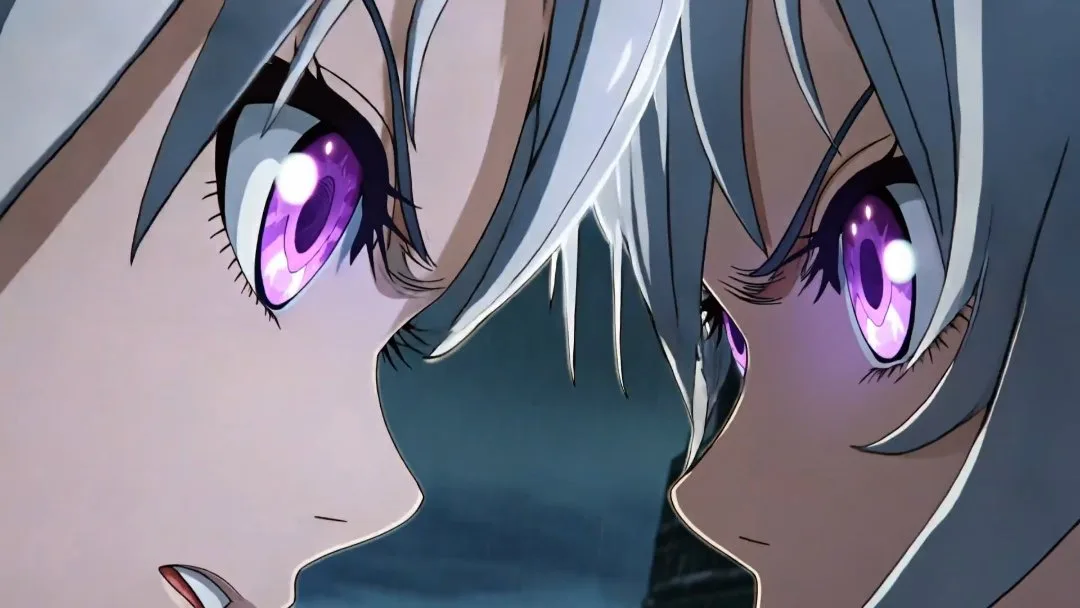
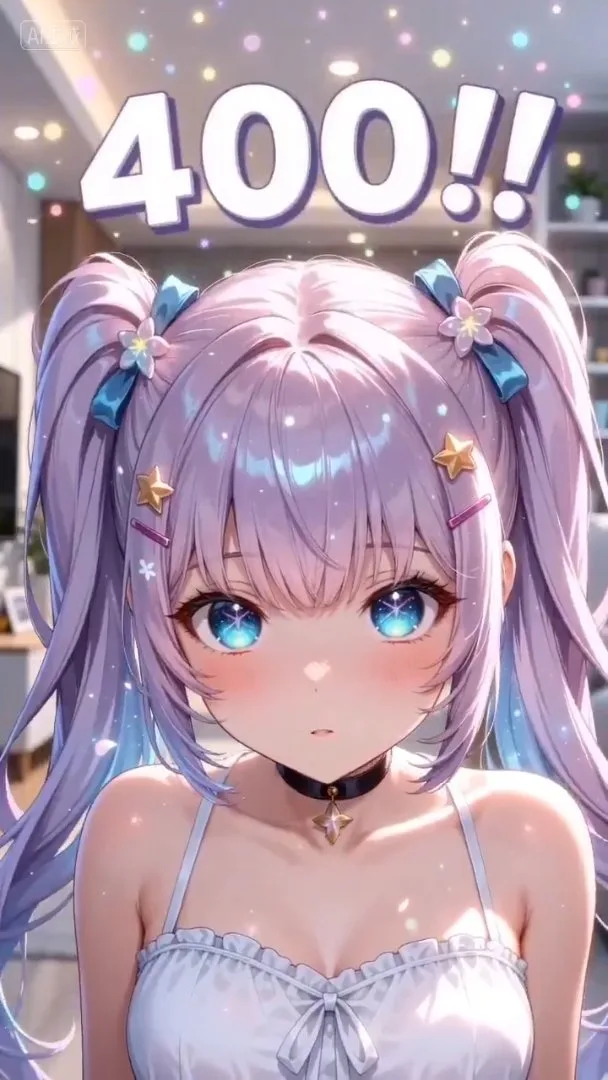
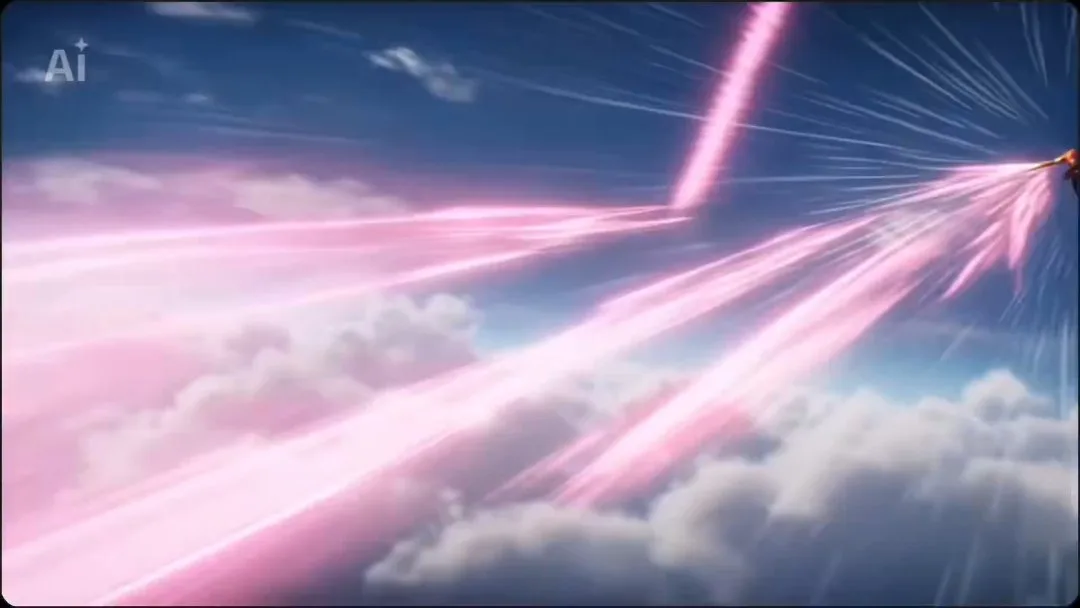

Veo 3.1 fits workflows that need more cinematic motion, stronger shot readability, and better control across prompt-led and reference-led video creation.
Veo 3.1 is well suited to prompt-led shots where camera direction, atmosphere, and subject movement need to feel more deliberate.
Start from a reference image when you want motion added without losing the original visual identity of the scene.
Define the opening and closing moments of a clip, then let Veo 3.1 build a smoother visual transition between them.
Bring in supporting images or motion references when character presence, staging, or timing needs tighter control.
Start with the scene idea, choose the Veo 3.1 control method, then generate a clip that is easier to refine into a polished result.
Write the subject, motion, environment, framing, lighting, and tone you want Veo 3.1 to preserve.
Switch between text-to-video, image-to-video, first-last frame, or reference-to-video based on how much guidance the shot needs.
Run the clip, inspect pacing and composition, then refine with stronger references or a more precise motion brief.
Choose the plan that works best for you. Cancel anytime.
$180 USD billed yearly
$420 USD billed yearly
$720 USD billed yearly
All payments are securely processed by Stripe.
If you have any questions, please contact us at [email protected]
Practical answers for using Veo 3.1 inside AnimeGenerator.
Veo 3.1 is a strong fit for cinematic short clips, polished prompt-led scenes, premium promo shots, and reference-guided motion that needs more visual control.
Yes. This page supports text-to-video, image-to-video, first-last frame to video, and reference-to-video modes under the Veo 3.1 model family.
Use image-to-video when the starting frame, character identity, or composition matters more than open-ended prompt exploration.
The section is intentionally tighter so Veo 3.1 use cases stay easier to compare, scan, and reuse without mixing in unrelated model examples.
Yes. You can generate 9:16, 1:1, and 16:9 outputs depending on whether you are building vertical shorts, square edits, or cinematic horizontal shots.
Yes. Credit cost depends on the Veo 3.1 mode, duration, resolution, and output count selected before generation.
Compare Veo 3.1 with other image and video model pages, then switch to the workflow that best fits your next shot.
Use this page for cinematic prompt-led video creation and tighter reference-guided motion control.
Open the broader multi-model video workflow when you want Veo 3.1 and Seedance tools in one place.
Start from a simpler text-first flow when you want to create motion clips without model-page framing.
Open the dedicated image-to-video route when your priority is turning still images into animated shots.
Move to GPT Image 2 when you need stronger still-image composition, text rendering, or layout-heavy prompt control.
Switch to Nano Banana 2 for faster image iteration, lifestyle staging, and reference-friendly image edits.
Turn one idea into anime images, videos, or motion comic-ready content with the mode that fits your project.