1
Describe the scene
Write the subject, action, and camera movement you want in the clip.
Create short anime videos from a text prompt, an image, or reference footage. Choose a generation mode and model to match your starting material.
Preview a clip, open a larger player, or select Recreate to load its preset and adjust it before generating.
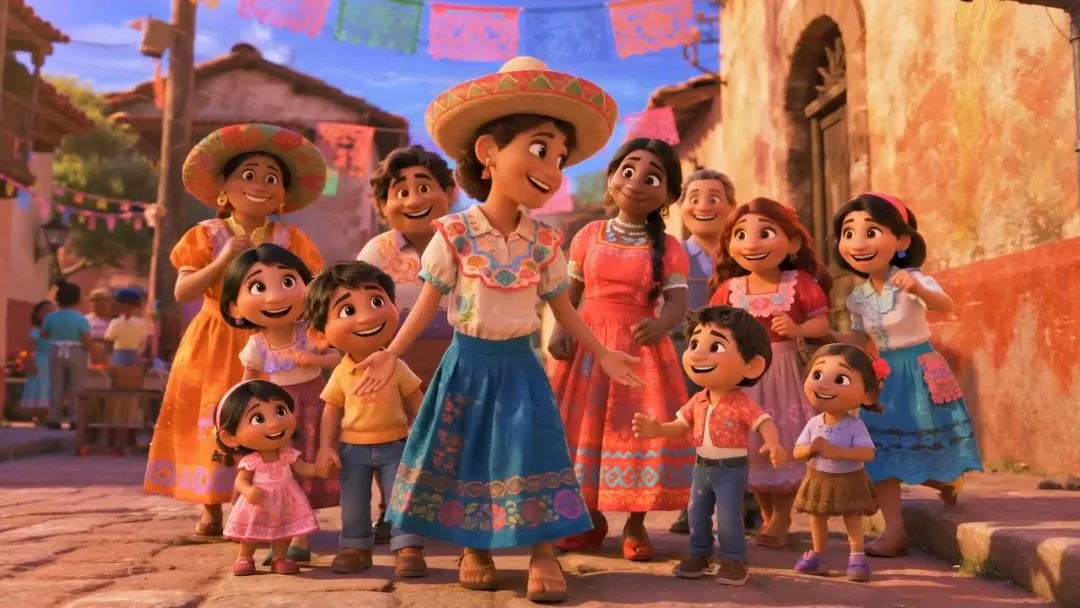
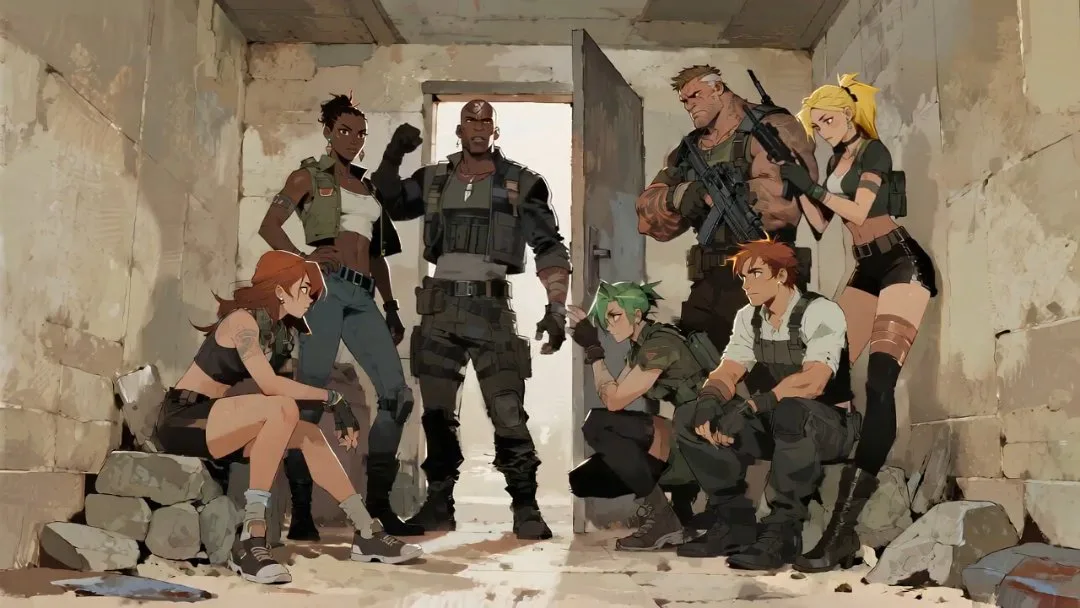
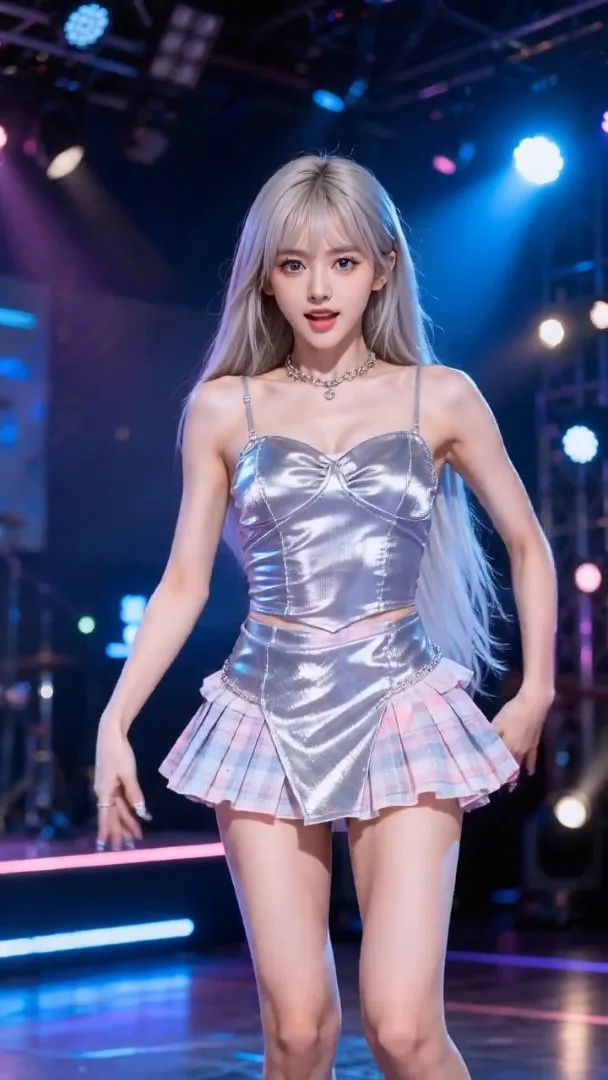
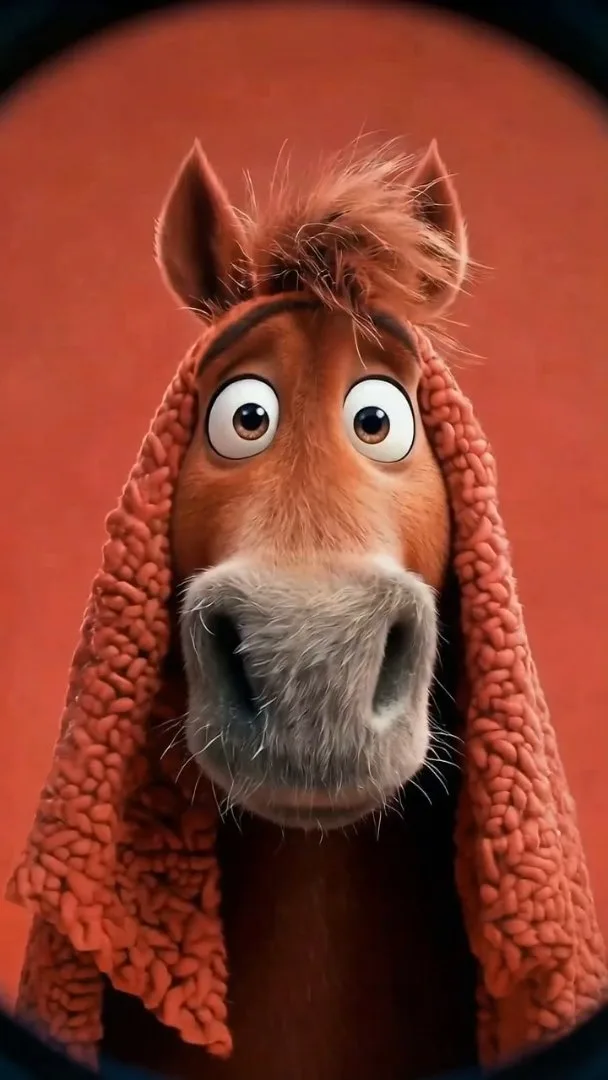
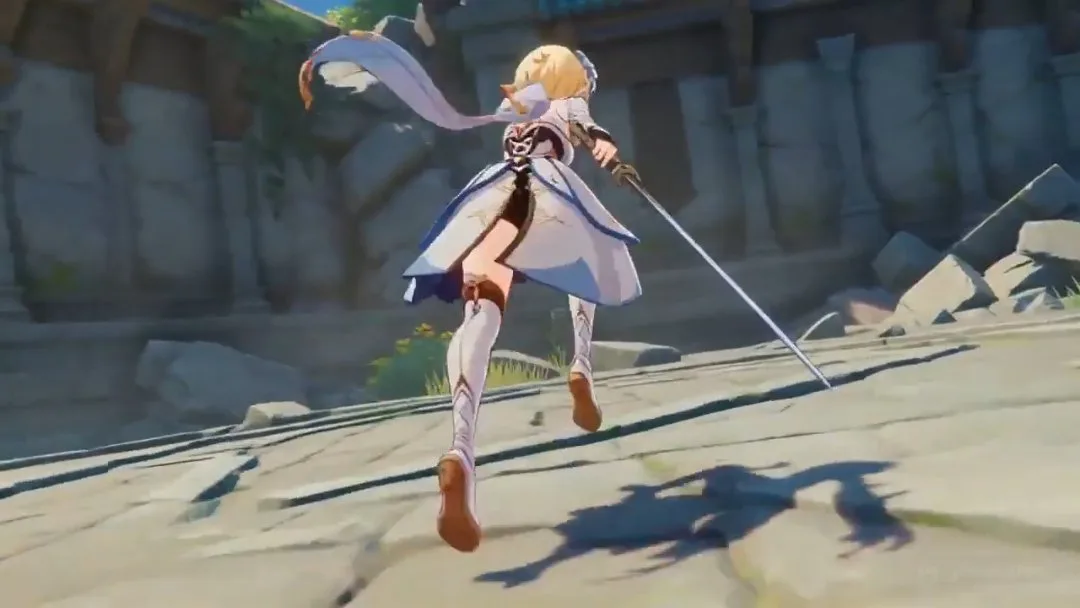
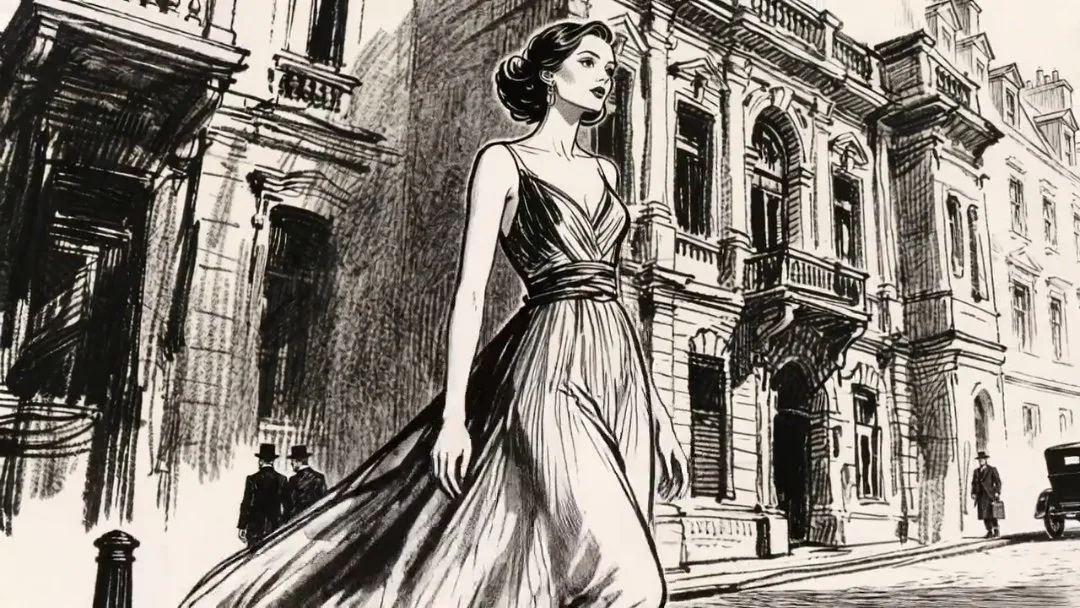
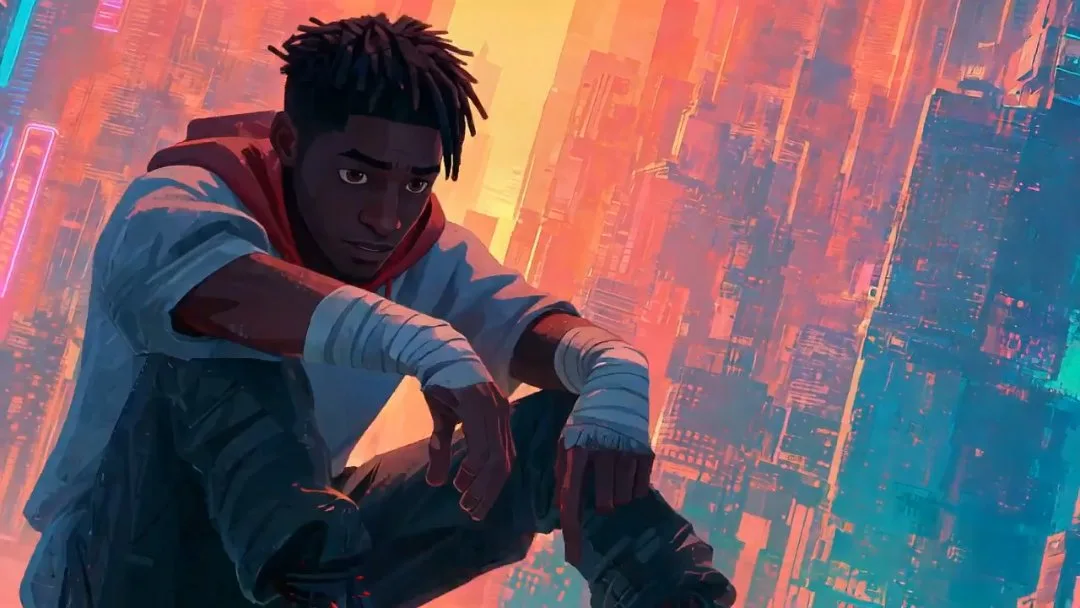
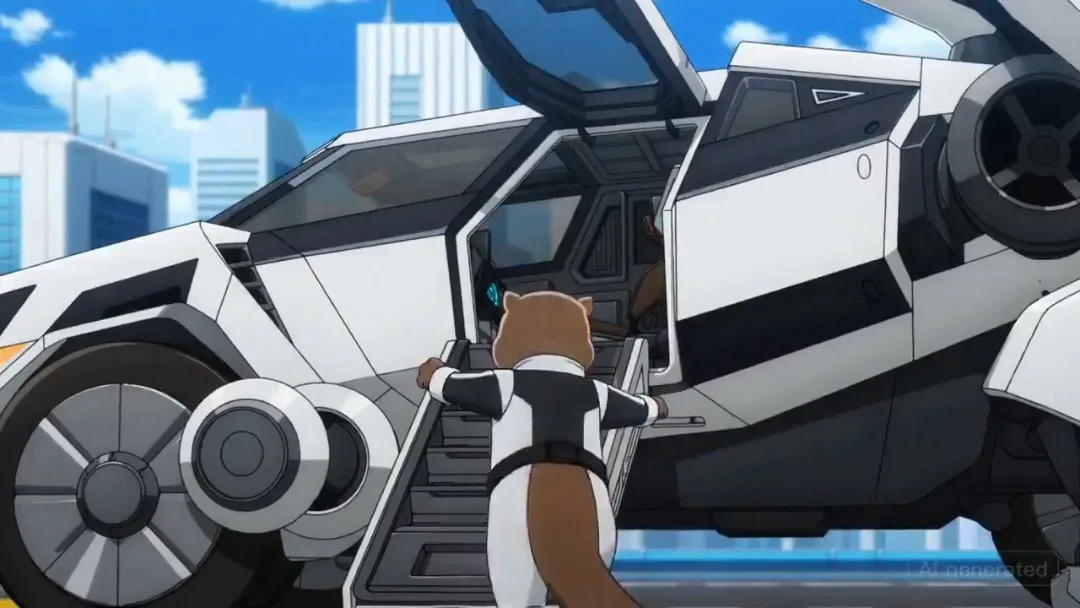
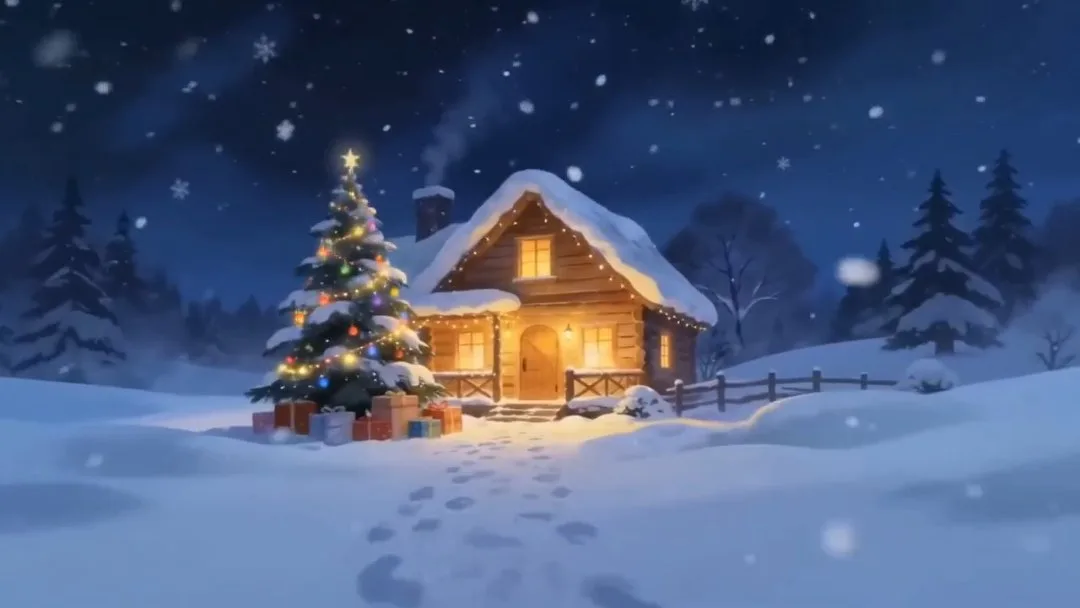
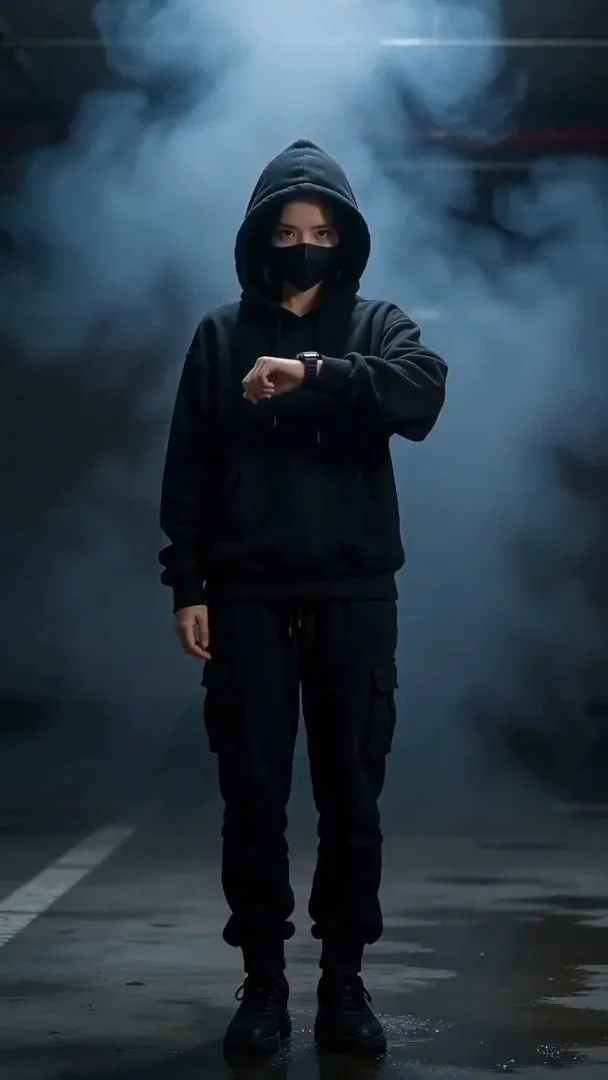
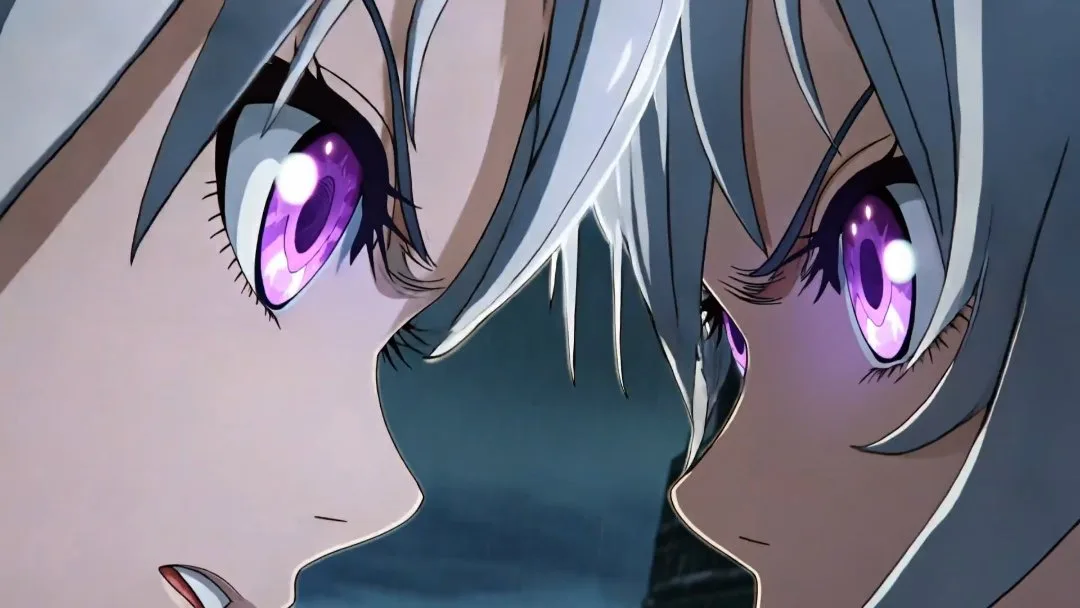
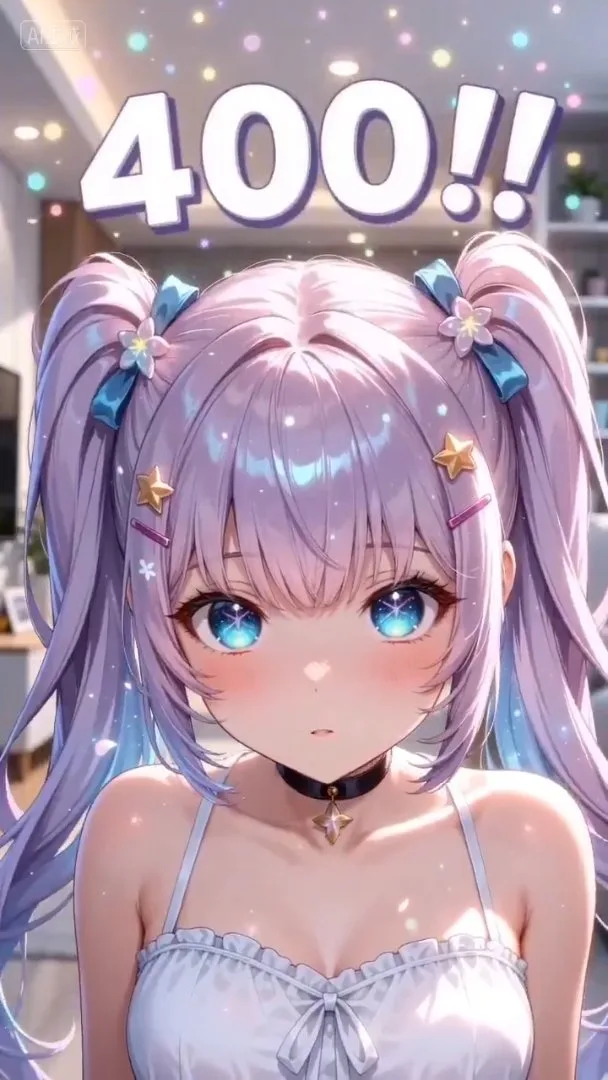
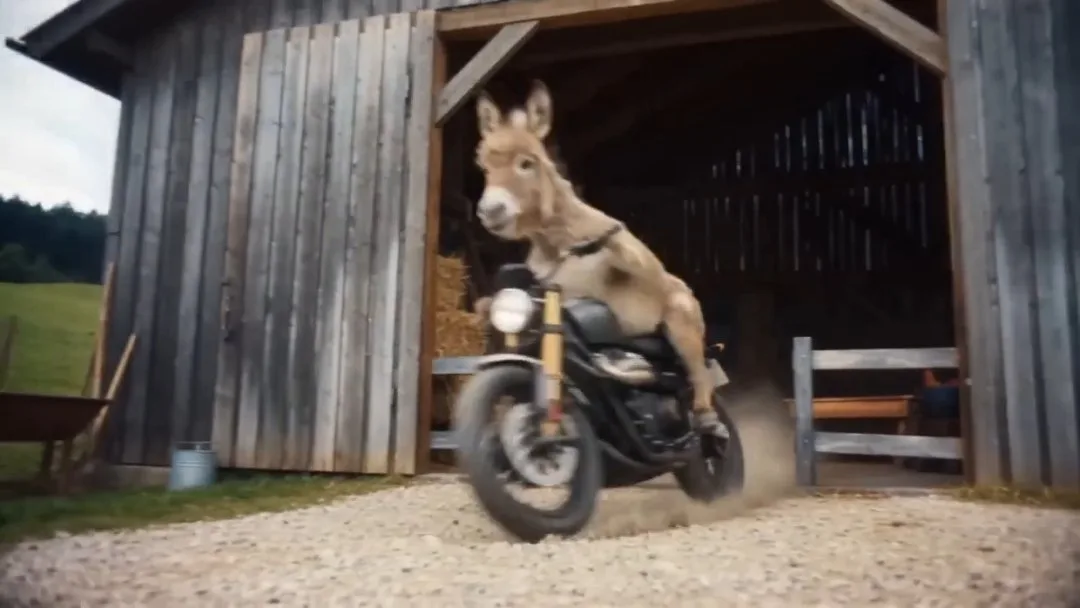
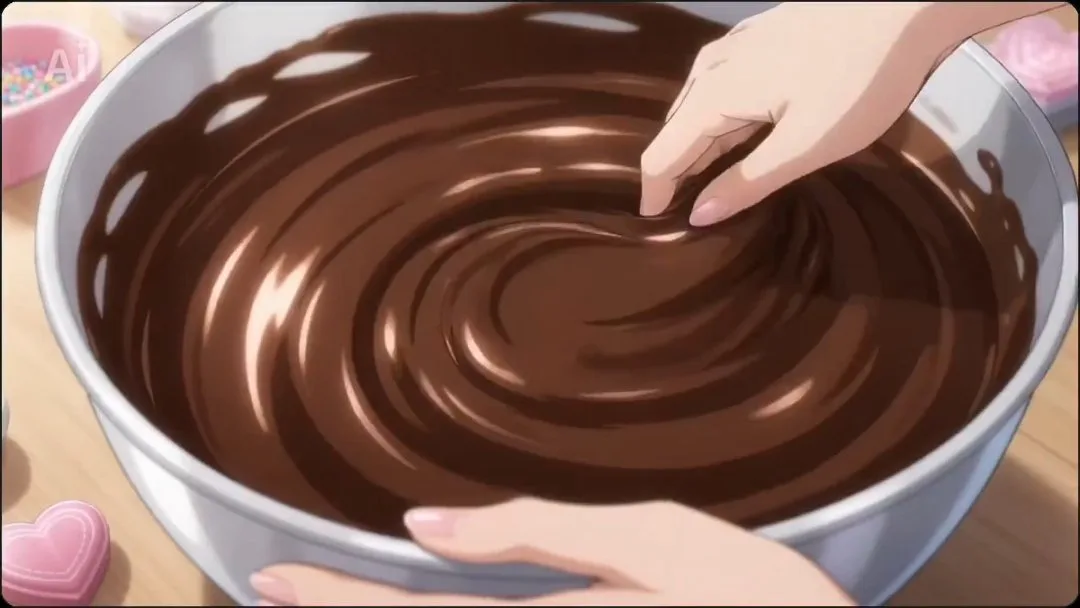
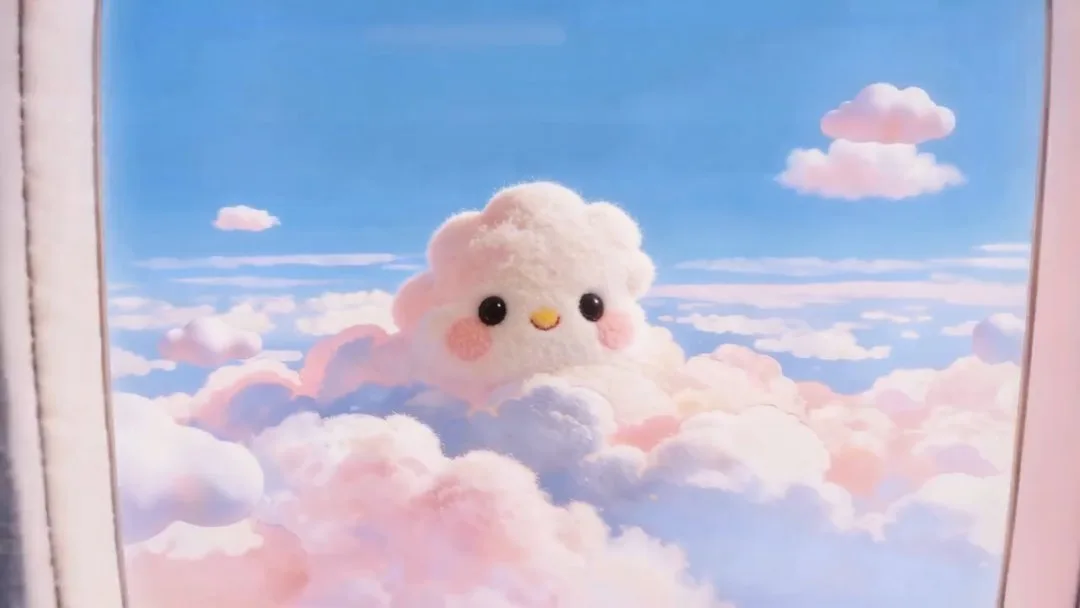
Choose a starting mode, prepare your scene, and check settings and credits before generating a short clip.
Write the subject, action, and camera movement you want in the clip.
Choose a mode and model, then add the required inputs. Text mode needs no reference upload; first/last-frame mode needs two images. Set the available output options.
Review the displayed credit cost, submit the generation, and wait for the result.
Preview the clip and adjust the prompt or references. Use inspired presets for a new generation; identical results are not guaranteed.
Choose how to start your anime clip, guide the scene, and select the output settings available for your model.
Describe a scene, action, and camera movement to generate a short anime clip from text.
Use reference images or footage to guide a new clip in a supported reference mode.
Upload both opening and ending images in first/last-frame mode to guide the transition.
Choose a model supported by your input mode. Available controls depend on the selected model.
Choose aspect ratio, duration, and resolution from the options available for your model.
Load an example’s prompt, settings, and available references, then adjust them before generating.
Compare monthly and yearly plans for AI anime images and videos. One-time credit packs let you top up when you need more credits.
$166.8 USD billed yearly
$418.8 USD billed yearly
$838.8 USD billed yearly
All payments are securely processed by Stripe.
If you have any questions, please contact us at [email protected]
Practical answers for using the anime video generator.
Generate short anime scenes, teaser shots, and social clips. Use each result as a shot in a larger project; this tool does not create a complete episode in one generation.
Use text-to-video for a prompt, image-to-video for a starting image, first/last-frame mode for two endpoint images, or reference-to-video for supported reference inputs. References guide a new clip; converting existing footage into anime is a separate Video to Anime workflow.
Preview a clip, open it in a larger player, or select Recreate to load its preset. On desktop, hovering plays the preview; clips with sound also have an audio toggle.
No. Recreate loads the prompt, settings, and available references without submitting a generation. Review or edit the preset first; submitting a new generation uses the displayed credits and may produce a different result.
Check the displayed cost before submitting. Credits depend on the selected model, duration, resolution, and other supported settings; changing settings can change the cost.
Choose the mode that matches your starting material, then select one of its available models. Check that model’s output options and credit cost before generating; results vary with the prompt and references.
Three entries, one product: anime images, anime videos, and the Studio workspace that holds a project together.
Generate anime images from prompts.
Turn photos into anime art.
Generate anime videos from prompts.
Convert video into anime style.
Keep an idea, characters, shots, images, and videos in one project.
Make anime images and videos in one place, or open Studio when you want the same idea to stay in one project.